Monday, February 16, 2015

Blendspace


Create lessons in 5 minutes?  Wow!  It is definitely worth a try.  Blendspace is a free web tool that allows teachers to organize content for a blended learning environment (the website says 5 minutes, but it may take a tad longer than that).

Begin by creating an account and clicking the  button.  Watch this 1 minute video to learn how to add elements to the created lesson.

The handy toolbar along the right side of the screen will allow you to quickly find and insert content into the blendspace:

Remember to click the  button to check the preferred PRIVACY and SHARE settings before sharing the blendspace with students

Search the blendspace knowledge base for further information.

Thursday, February 12, 2015

Tagul - Clickable Word Clouds


Tagul is a fantastic free tool to reinforce academic vocabulary.  The tool provides various shaped word clouds with an added feature - interactive links specified by the cloud creator (try clicking the cloud shown above).

  1. Create an account or sign in:
  2. Click the button
  3. Enter a name in the CLOUD NAME field:


    IMPORTANT STEP!!!
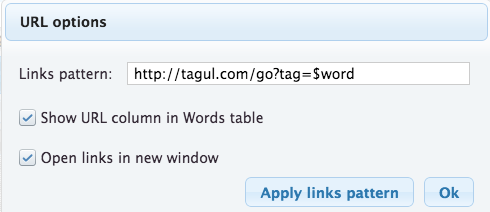
    This step is necessary for the interactive linking features
  4. Click the   button
  5. Place a checkmark next to:
    - Show URL column in Words table
    - Open links in new window (optional)
  6. Click OK
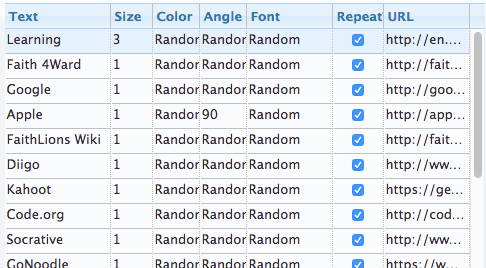
  7. Under the WORDS section:
    - Enter in the words or phrases under the TEXT column
    - Optional - select a SIZE, COLOR, ANGLE, FONT or REPEAT
    Copy and Paste desired URLs into the URL column:
  8. Periodically, click the button
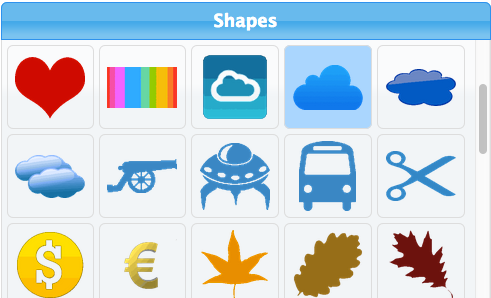
  9. Select a preferred shape under the SHAPES section:
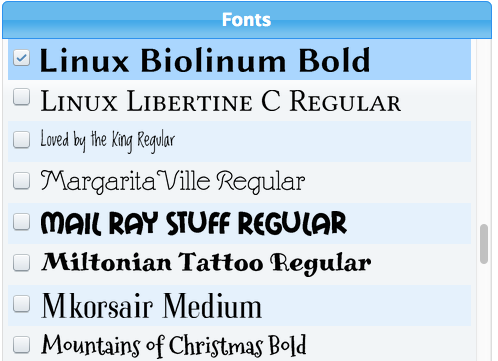
  10. Select the desired font under the FONTS section:
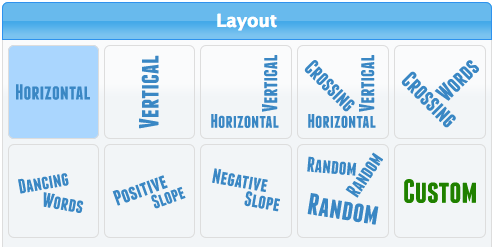
  11. Select a preferred layout under the LAYOUT section:
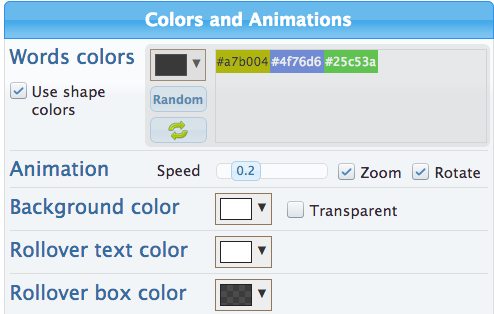
  12. Select desired colors and animations under the COLORS AND ANIMATIONS section:
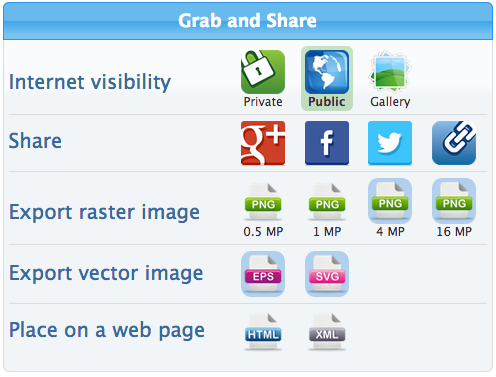
  13. Specify sharing options under the GRAB AND SHARE section:
See Tagul's FAQ page for additional help.


Monday, February 9, 2015

Sweet Search


When doing research with students, try sweetsearch.com, a search engine for students. A team of research experts have carefully curated content to return quality results for teachers and students.  In addition to using the search engine, educators may want to utilize the SweetSearch2Day area that highlights a historical fact for that day.  Other features include biographies, helpful research tips, Social Studies content, and SweetSearch4Me for younger students.  Read more here or view this video for a preview of SweetSearch.com and tips on saving your search results to Google Drive, Evernote, Diigo, etc.

Click here to look around Dulcinea (as mentioned on the above video).


Friday, January 23, 2015

Oldies But Goodies

This video spotlights 10 ipad apps that have been around for awhile, but they continue to work well in the classroom.


Of the ones mentioned, the following are also available for Android:
  • Skitch
  • Chirp
  • Nearpod
  • Socrative

Wednesday, December 31, 2014

2014 Posts You May Have Missed


In case you were rushing through the year and missed some digital resources that can be used in your classroom, see 10 Faith 4ward posts from 2014:

  1. Connected Educators - Take time to grow your personal learning network and connect with other educators with tools such as Twitter.
  2. Chatterpix Kids - Chatterpix Kids is a fun iPhone/iPad app with many possibilities for many curricular areas.
  3. Journaling Apps - This post spotlights the Things to Think About app and the Write About This app.
  4. Poetry Month - This post from April spotlights nine poetry apps.
  5. Infographics - This post covers infographic design, ideas for using them, and tools to create infographics.
  6. Flipped Classroom Resources - This post highlights two resources that embed interactivity into video - EdPuzzle and Educanon.
  7. Book Creator - The Book Creator app is a tool that allows students to publish work in an epub format.
  8. Brain Breaks with GoNoodle - GoNoodle offers a variety of brain break activities for any grade level.  Do not miss this post as this free resource is way too much fun!
  9. Differentiation with Stick Pick - The Stick Pick app is similar to the old fashioned can of popsicle sticks, but teachers can utilize the Bloom's question stems found in the app to focus on students' various cognitive levels.
  10. Tackk - Create flyers, presentations, projects, blogs, and lessons with this digital resource.

Tuesday, December 2, 2014

Discovery Education's Board Builder

Board Builder, a student and teacher tool found in Discovery Streaming, is a great way to deliver media content.  It is completely flexible and allows for creativity.  Think of presenting with a digital poster board.

Getting Started

To get started, log into your Discovery Streaming account:

Next, go to BUILDER TOOLS > BOARD BUILDER:
Select a theme:
Enter a TITLE and DESCRIPTION into the CREATE BOARD window and click CONTINUE:
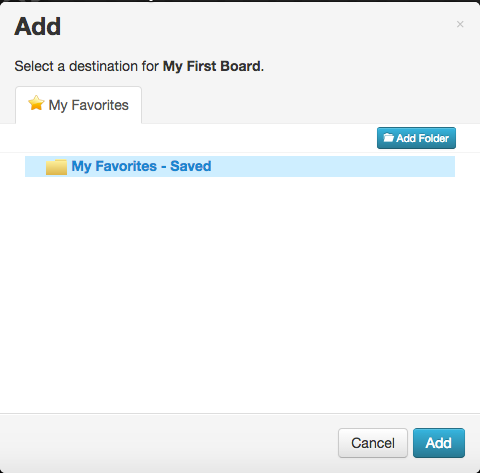
Select an existing folder or use the ADD FOLDER button to add a new folder and click ADD:

Text Objects

  1. Click a text object to enter text
  2. Click the PENCIL button to display the EDIT TEXT toolbar:

  3. Use the EDIT TEXT toolbar to format the text object:

Media Objects

Complete one of the following to insert media into a media object:
  1. Click SEARCH to search the Discovery media library, click the orange +ADD button, and click the ADD SELECTED RESOURCES button
  2. Click MY CONTENT to access and insert media already saved in your MY CONTENT area
  3. Click UPLOAD to upload your own media

Adding Attachments

NOTE: The maximum file size for attachments is 100mb and the maximum amount of files is five.

PERMITTED FILE TYPES:


  1. Click the UPLOAD button found in the attachment object to upload a file
  2. Click the ADD FILES button
  3. Navigate to the preferred file on your computer
  4. Repeat steps 2-3 above to add other files NOTE: The maximum file amount is five
  5. Click START UPLOAD
  6. Click DONE after the upload process is complete

Working with Objects

To move an object, click the object, hover over the grey top bar and drag and drop the object with the four-headed arrow mouse appearance:

Editor Tools

Use the Editor Tools to undo an action, redo an action, change the theme of the board, add items (such as Headlines, Textboxes, Media, and Attachments), apply text styles, change the foreground colors and patterns, and change the background colors and patterns.

Save and Share

Before logging out of Discovery Streaming, be sure to click thebutton found in the top, right corner.

In order for others to see the board, click thebutton and select SCHOOL, DISTRICT, DE COMMUNITY, or NOT SHARED:

Watch this 5 minute video by Kayla Steiner on how to create and share your teacher board.

Monday, November 17, 2014

Attend a Conference - VIRTUALLY!

I was not able to attend Edcampalooza on Saturday, however I was able to join in on the fun virtually through Twitter.  I logged in midday and searched for the hashtag #edcampalooza:

Within minutes, I had a new set of great resources shared by fellow educators.

Just to name a few:


That Quiz

This simple, yet effective, online tool can quiz students on a variety of math objectives.

Newslea

Newsela is a personalized reading site created to help students master non-fiction literacy by providing daily news articles at five reading levels.

Zaption

Zaption allows teachers to insert images, text, quizzes, and discussions to online videos found on YouTube and Vimeo to create a more interactive experience for students.

Typeform

Typeform is a form creation tool that has many color pallet options, form options that engage the user, and their goal is to "make forms awesome."

Move the Turtle


The Move the Turtle app for iphone and ipad teaches the basics of computer programming.  This $2.99 app would be a great resource for the Hour of Code coming up in December.