Showing posts with label multimedia. Show all posts

Monday, January 11, 2016

Voc App Flashcards


VocApp flashcards are wonderful for learning vocabulary.  The flashcards can be accessed via the web, the iOS app, or the Android app.  The VocApp flashcards are unique because they are multisensory.  If learning a new language, learners can have VocApp read answers or display photos on the cards.  Pre-readers can surely benefit from the audio feature.

Create an account to save flashcard lists.  There are several ways to create cards.  You can simply enter in the information or if learning a language, select the language and have VocApp supply the answer for you.

A list of words can quickly be imported or a larger amount of text can be assessed to auto-create flashcards from the most used words.

Click the button to personalize the autocomplete settings:
Flashcards can be enhanced with the onscreen tools in the web app:

Flashcards can be created in the mobile apps as well.

Tuesday, December 2, 2014

Discovery Education's Board Builder

Board Builder, a student and teacher tool found in Discovery Streaming, is a great way to deliver media content.  It is completely flexible and allows for creativity.  Think of presenting with a digital poster board.

Getting Started

To get started, log into your Discovery Streaming account:

Next, go to BUILDER TOOLS > BOARD BUILDER:
Select a theme:
Enter a TITLE and DESCRIPTION into the CREATE BOARD window and click CONTINUE:
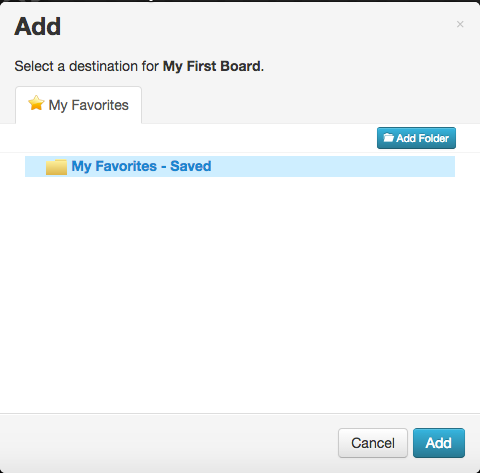
Select an existing folder or use the ADD FOLDER button to add a new folder and click ADD:

Text Objects

  1. Click a text object to enter text
  2. Click the PENCIL button to display the EDIT TEXT toolbar:

  3. Use the EDIT TEXT toolbar to format the text object:

Media Objects

Complete one of the following to insert media into a media object:
  1. Click SEARCH to search the Discovery media library, click the orange +ADD button, and click the ADD SELECTED RESOURCES button
  2. Click MY CONTENT to access and insert media already saved in your MY CONTENT area
  3. Click UPLOAD to upload your own media

Adding Attachments

NOTE: The maximum file size for attachments is 100mb and the maximum amount of files is five.

PERMITTED FILE TYPES:


  1. Click the UPLOAD button found in the attachment object to upload a file
  2. Click the ADD FILES button
  3. Navigate to the preferred file on your computer
  4. Repeat steps 2-3 above to add other files NOTE: The maximum file amount is five
  5. Click START UPLOAD
  6. Click DONE after the upload process is complete

Working with Objects

To move an object, click the object, hover over the grey top bar and drag and drop the object with the four-headed arrow mouse appearance:

Editor Tools

Use the Editor Tools to undo an action, redo an action, change the theme of the board, add items (such as Headlines, Textboxes, Media, and Attachments), apply text styles, change the foreground colors and patterns, and change the background colors and patterns.

Save and Share

Before logging out of Discovery Streaming, be sure to click thebutton found in the top, right corner.

In order for others to see the board, click thebutton and select SCHOOL, DISTRICT, DE COMMUNITY, or NOT SHARED:

Watch this 5 minute video by Kayla Steiner on how to create and share your teacher board.