Showing posts with label web. Show all posts

Monday, February 23, 2015

TEDEd


TED Ed is a collection of educational videos created by educators, screenwriters, and animators.  Their motto is "lessons worth sharing."  These lessons are carefully written, artistically enhanced with graphics and animations, and short and to the point.  Begin by going to ed.ted.com and clicking on LESSONS on the top bar:


In addition to viewing a short, engaging lesson, students can then quiz themselves on the content by clicking the THINK link found at the right of the video.


The DIG DEEPER link allows students to learn more by reading additional information that typically includes links to additional videos or articles.  Finally, the DISCUSS section poses a thought-provoking question for students.  They can respond in class or online with an account (for ages 13 or older with an email address).  Click here for the full tour of the website.

Monday, February 16, 2015

Blendspace


Create lessons in 5 minutes?  Wow!  It is definitely worth a try.  Blendspace is a free web tool that allows teachers to organize content for a blended learning environment (the website says 5 minutes, but it may take a tad longer than that).

Begin by creating an account and clicking the  button.  Watch this 1 minute video to learn how to add elements to the created lesson.

The handy toolbar along the right side of the screen will allow you to quickly find and insert content into the blendspace:

Remember to click the  button to check the preferred PRIVACY and SHARE settings before sharing the blendspace with students

Search the blendspace knowledge base for further information.

Thursday, February 12, 2015

Tagul - Clickable Word Clouds


Tagul is a fantastic free tool to reinforce academic vocabulary.  The tool provides various shaped word clouds with an added feature - interactive links specified by the cloud creator (try clicking the cloud shown above).

  1. Create an account or sign in:
  2. Click the button
  3. Enter a name in the CLOUD NAME field:


    IMPORTANT STEP!!!
    This step is necessary for the interactive linking features
  4. Click the   button
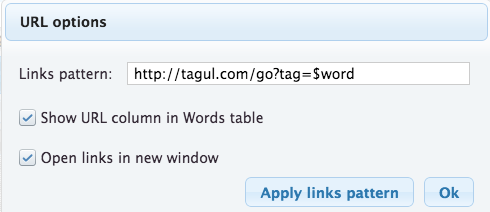
  5. Place a checkmark next to:
    - Show URL column in Words table
    - Open links in new window (optional)
  6. Click OK
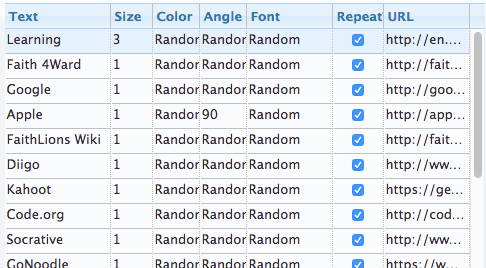
  7. Under the WORDS section:
    - Enter in the words or phrases under the TEXT column
    - Optional - select a SIZE, COLOR, ANGLE, FONT or REPEAT
    Copy and Paste desired URLs into the URL column:
  8. Periodically, click the button
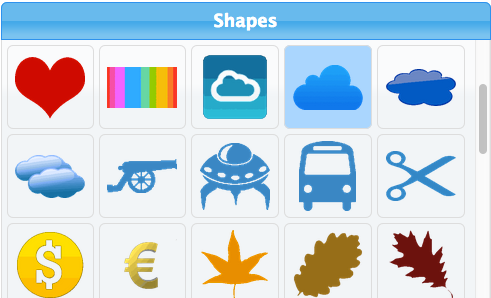
  9. Select a preferred shape under the SHAPES section:
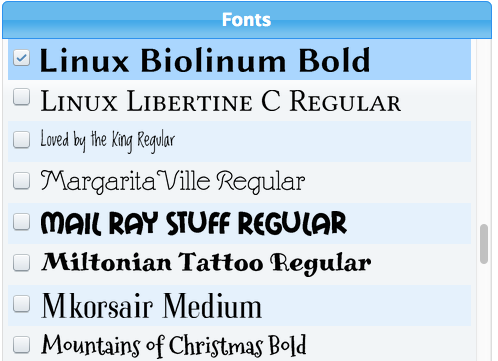
  10. Select the desired font under the FONTS section:
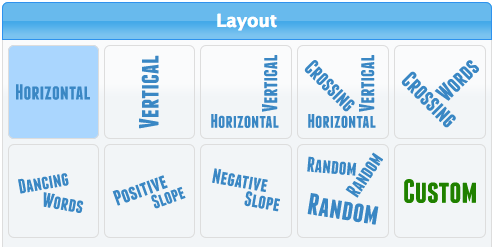
  11. Select a preferred layout under the LAYOUT section:
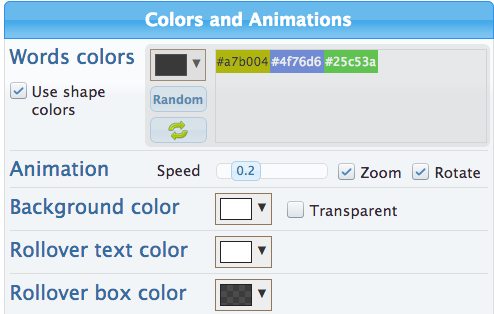
  12. Select desired colors and animations under the COLORS AND ANIMATIONS section:
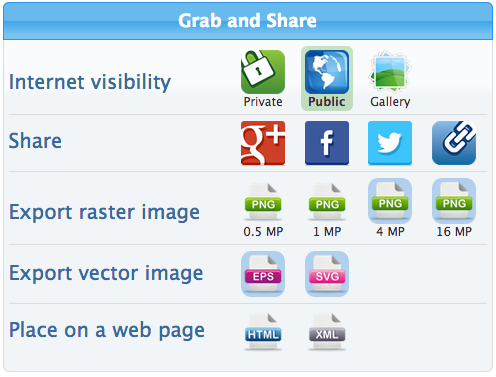
  13. Specify sharing options under the GRAB AND SHARE section:
See Tagul's FAQ page for additional help.


Thursday, August 14, 2014

Six Google Search Tips

#1 - Search by Filetype

Add filetype: and the 3-letter file extension:

#2 - Ignore Words

Use the minus sign before the word you would like to exclude from your results:

#3 - Search by Location

Add a zip code after any search:

#4 - Search a Specific Site or Site Type

Begin with site: (for example, site:edu or site:grapevinefaith.com)

#5 - Use Country Codes

Use the above tip along with country codes to search websites from a specific country:

#6 - Advanced Image Search

Search images with a particular color, size, image type, etc. when using the ADVANCED SEARCH features:

Seeking a Challenge?

Check out A Google a Day for daily Google search challenges