Monday, June 20, 2016

Androidify

If you are looking for a way to spruce up your website or identity, check out Androidify.


This site allows those 13 or older a way to create a personalized android avatar.  The site guides the user through a series of steps to add clothing, eyewear, accessories, and even fun movements!


The final step guides the user to save or share the final animated GIF.

Application for Teachers

Teachers could digitize the All About Me first day of school activity with an Androidify Yourself activity instead.


Friday, April 22, 2016

Discovery Ed's SOS

Many educators use Discovery Education for their vast database of videos and teaching materials.  However, there are many other resources found in the DE system.  For example, the Spotlight on Strategies (also known as "SOS") initiative has laid out a wealth of instructional strategies that teachers from all curriculum areas and levels can utilize.

To find these effective teacher created resources, log into your Discovery Education account and search for SOS:
 You may want to click the VIEW STRATEGIES BY SKILL button:
The strategy categories will appear, such as ASSESSMENT, COMPARE AND CONTRAST, SUMMARIZING, etc.

 Click VIEW ALL from within a category area to see more strategies:
Select the preferred strategy to view a description, a short video, and a PDF explaining the strategy:

Click the  to ADD TO MY CONTENT, ASSIGN TO CLASSROOM/STUDENT, ADD TO BUILDER TOOL, or SHARE.

Wednesday, February 17, 2016

Share to Classroom Chrome Extension


The Share to Classroom Chrome extension allows teachers to easily push out websites and resources from their browser to their students.

Adding the Extension

Sign into your Chrome account:

  1. Click the CHROME MENU 
  2. Click SETTINGS
  3. Click SIGN IN
Complete one of the following:

  1. Go to the Chrome webstore and search for Share to Classroom
  2. Go to Share to Classroom
Click ADD TO CHROME

Using the Extension

While on a site you would like to share, click the SHARE TO CLASSROOM extension button found in the top, right corner of your screen:
Select the desired class:
Complete the process by completing the options in the SHARE TO CLASSROOM window:


Find more information on the Classroom Help page

Monday, February 8, 2016

Watchkin, Safeshare, and More


If you've ever had something inappropriate appear on the side of your YouTube screen or have been distracted by the many YouTube suggested videos, this post is for you.  Watchkin is a site that allows users to paste a YouTube link into a simple text box and create a new link that points to an ad-friendly video format.

Simply COPY the URL from YouTube:

Next, navigate to Watchkin and PASTE into the Watchkin URL field:
TIP: Use the FULLSCREEN VIEW button in the lower, right corner of the video window:


SafeShare.tv also assists in producing a clean screen for video watchers.  Complete a similar process for SafeShare.tv.

COPY the URL from YouTube:

Now, go to SafeShare.tv and PASTE the URL into the text box:


Click the button.

Change the TITLE if you would like, add a description, select additional preferences and click SUBMIT

A video screen will appear with a new SAFESHARE link at the bottom of the screen:


Viewpure will complete the same task, however the  bookmarklet can be added to the BOOKMARKS BAR for more convenience.


Read more on the Viewpure website.


Monday, January 11, 2016

Voc App Flashcards


VocApp flashcards are wonderful for learning vocabulary.  The flashcards can be accessed via the web, the iOS app, or the Android app.  The VocApp flashcards are unique because they are multisensory.  If learning a new language, learners can have VocApp read answers or display photos on the cards.  Pre-readers can surely benefit from the audio feature.

Create an account to save flashcard lists.  There are several ways to create cards.  You can simply enter in the information or if learning a language, select the language and have VocApp supply the answer for you.

A list of words can quickly be imported or a larger amount of text can be assessed to auto-create flashcards from the most used words.

Click the button to personalize the autocomplete settings:
Flashcards can be enhanced with the onscreen tools in the web app:

Flashcards can be created in the mobile apps as well.

Friday, October 23, 2015

Focus Friday

Although I have no scientific evidence, I've recently tried two music web-based resources that have helped with my productivity.  In addition, the focus tracks seemed to help my little ones while doing homework.  

A Few Educational Implications:

- Play while students work independently
- Play during tutoring sessions
- Play as students brainstorm and write


Brain Shift Radio is a subscription-based music resource to help you sleep better, focus better, get more energy, etc.  The user selects a category from brain boost, energy, meditation, uplift, calm, focus, and sleep.

The user plays the rhythmic music to reach their intended goal.  Volume level is dependent on the selected category, instrumentation, tempo, intensity level, and brain type. More information on volume selection can be found here.  A free two week trial account is available for evaluation.  The subscription cost is either $9.99 per month or $59 per year.  Read more here or follow the Brain Shift Radio blog.


Focus At Will also specializes in music that will keep you focused.  Like Brain Shift Radio, Focus At Will offers a free two week trial account.  Click the FREE TRIAL button, fill in the form, and click the GET ME FOCUSED button.  The main categories include:
The LABS category displays the beta categories that Focus At Will introduces each month.
Read more here.  View pricing information.


Other Related Articles

How Music Can Inspire Strong Student Writing and Discussion
How Repetition in Music Affects Your Thinking


Thursday, October 22, 2015

Writing Resources


writeabout.com is a safe place for students to publish their writing with an authentic audience.  Teachers can set up groups that are closed or open to the public.  Student identity is protected while their writing can be published.  Write About provides hundreds of thought-provoking images that inspire writing.  The free account allows teachers to create 40 student users with up to 5 posts. Find pricing information here.  With the limited free account, the visual prompts could be used with other online tools for writing.


Ginger offers several writing tools, yet the grammar checker is my favorite.  I installed the Chrome extension and use it while composing emails, filling in forms, writing documents, etc.  Ginger highlights my incorrect sentences in blue and when I hover over the highlighted portion, suggestions pop out above the sentence.


StoryToolz offers many resources including a story idea generator, random conflicts, word count meters, readability analytics, a half title generator, and a cliche buster.


Hemingway Editor analyzes writing for readability and style.  The tool focuses on making your writing "bold and clear."  Read more here.


Monday, August 31, 2015

Flippity


Flippity.net has several wonderful tools that can be used by teachers and students along with their Google account.  If you can enter information into a Google sheet, you can utilize all of the resources at Flippity.net.  Each tool includes FREE instructions along with a FREE demo and template doc.  Look for the following options found under each tool along the right side of the webpage:

The template docs force the user to create a COPY:

Flippity Random Name Picker

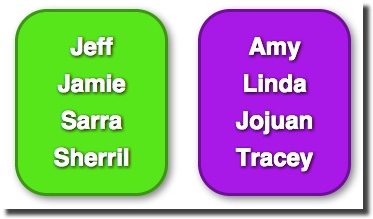
The random name picker can be so valuable in quickly selecting students for classroom jobs, checking for understanding, and answering questions.  In addition, the tool can quickly create groups based on number of students per group or groups per class.

 
Click the template link found under Flippity Random Name Picker to begin.  Replace the fake names with the preferred names.
Continue to follow the instructions.

Flippity Quiz Show

The quiz show acts very similar to a Jeopardy game board.

The tool allows for images and helps in keeping score by adding or subtracting points based on the question location on the board.  Simply click the check for correct answers or the X for wrong answers and points will be awarded to the appropriate team:
Follow the instructions here to create your own quiz game using the Flippity.net template.  

Flippity Certificate Quiz

The certificate quiz can be used to create a student-paced quiz that earns a certificate for mastery.  Simply use the template provided to enter in questions and answer choices of your own.  In addition, images can be added to both questions and answers.  YouTube video links can also be added to questions.  See instructions here.

Flippity Progress Indicator

The progress indicator is a fantastic tool to track student progress.  The template offers a few ideas, such as pages read, miles ran, books completed, or questions answered.  The progress indicator could be used along with student goals throughout the year.  Like the other Flippity.net resources, excellent directions and a template to get you started can be found on the website.

Flippity Flashcards

The flashcards tool can create an effective study tool for students.  Simply copy the template found at Flippity.net, modify the spreadsheet cells to match your content area, and follow the instructions for publishing a link for your students.  In addition to flashcards, students can view a list of questions and answers, visit a auto-generated word cloud, and print a quiz over the material.

Visit the Flippity.net FAQ page to find out more.